
Shopify 404 Redirect: Causes, Fixes and When to Skip It
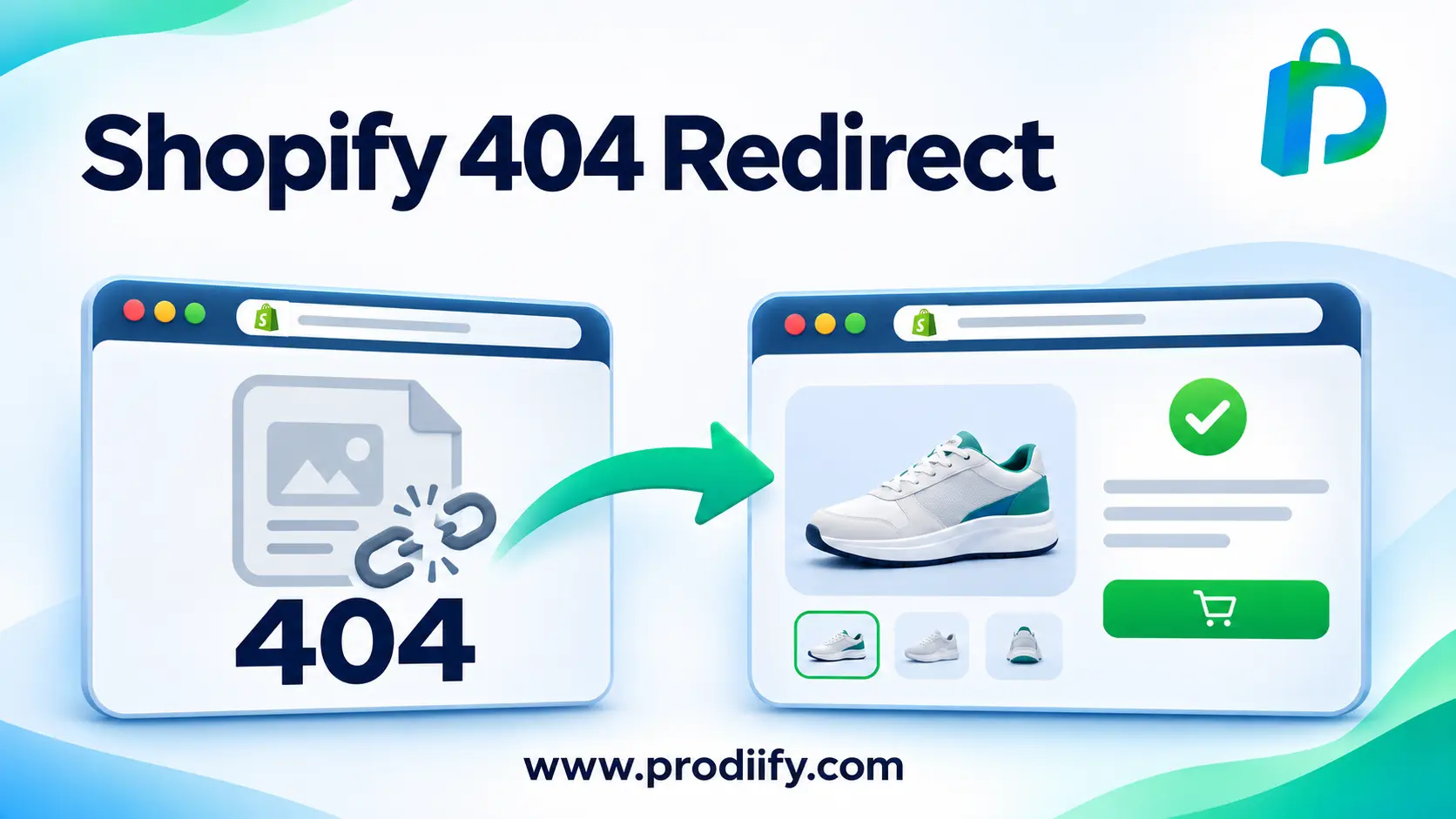
A Shopify 404 redirect sends visitors from a dead page to a live one. Used well, it protects both your shoppers and your search traffic.
A shopper clicks a link to a product they saw on Instagram. The page says “404 Not Found”. They leave, and they are unlikely to come back.
Broken pages are a normal part of running a store. Products get deleted, collections get renamed and links get mistyped. The goal is not to have zero 404 errors. It is to handle the important ones, and a Shopify 404 redirect is the main tool for that. This guide explains what causes 404s, how to find them, how to set up redirects and, just as important, when a redirect is the wrong answer.
What a 404 Error Actually Is
A 404 means the server could not find the page at that address. Shopify shows a “404 Not Found” page when a visitor requests a URL that does not exist in your store.
One 404 is not a disaster. The trouble starts when an old, valuable URL, such as a product page with backlinks or a collection people bookmarked, returns a 404 and nothing leads shoppers to where the content went.
Common Causes of 404 Errors on Shopify
- Deleted products or collections. The page no longer exists, but old links, search results and bookmarks still point to it.
- Changed URL handles. Renaming a product or collection can change its URL. A guide that cites the Shopify Help Center says changing a product or page handle generates a 301 automatically, while changing themes, variants or deleting products does not.
- Restructured stores or migrations. Moving to Shopify or reorganizing collections changes many URLs at once.
- Mistyped internal links. A wrong link in your menu, a blog post or a banner sends visitors to a page that does not exist.
- Old backlinks. Other sites may link to URLs you have since changed.
How to Find 404 Errors
You cannot fix what you cannot see. Start with these sources:
- Google Search Console. Check the pages report for URLs that return “Not found (404)”. A Shopify Community reply suggests exporting the list: download the 404 URLs from Google Search Console as CSV, then clean the file with the old URL and the new URL.
- Google Analytics. Look for visits to your 404 page and see which URLs triggered it.
- A site crawler. Free and paid crawlers scan your store for broken internal links.
- Redirect and broken-link apps. Several apps track 404 hits and scan products, collections, pages and blogs for broken links. Prodiify does not do this, but the Shopify App Store has options.
Sort what you find by importance. A 404 that gets one visit a year matters less than a deleted best seller that still gets traffic from Google.
Setting Up a Shopify 404 Redirect
Shopify has a built-in redirect tool, and for a handful of URLs it is all you need.
- From your Shopify admin, go to Online Store > Navigation.
- Click URL Redirects.
- Click Create URL redirect.
- In Redirect from, enter the old path, for example
/products/old-product-name. One guide notes to use only the path, not the full URL. - In Redirect to, enter the new page.
- Click Save redirect.
A detail worth knowing: one guide points out that redirects only function when the original URL returns a 404 error; they cannot redirect active pages. If the old page still exists, the redirect will not trigger.
Bulk Redirects With a CSV File
If you have dozens or hundreds of URLs, such as after a migration, import them in one go.
- In URL Redirects, click Import.
- Download the sample CSV and follow its format, with two columns: Redirect from and Redirect to.
- Upload your file and confirm the import.
A few practical warnings from guides on this: one notes that if you do not convert an Excel file to CSV and try to upload it, you will see an error. The same guide advises to double-check the file for spelling mistakes and make sure each “from” URL returns a 404 before importing, and to review any errors Shopify reports before uploading again.
One more thing on limits: a third-party guide says standard stores can create up to 100,000 URL redirects, with a much higher limit on Shopify Plus. Check Shopify’s current documentation, since limits can change.
When to Redirect, and When Not To
This is the part most guides skip. A redirect is a promise: “the thing you wanted is over here.” A misleading redirect breaks that promise.
| Situation | What usually makes sense |
|---|---|
| Product temporarily out of stock | Do not redirect or delete. Keep the page live, show it clearly as sold out and consider a back-in-stock option or links to similar items. |
| Product permanently discontinued, with a close replacement | Redirect to the closest equivalent product or its collection. |
| Product discontinued, nothing similar | Redirect to the most relevant collection. If nothing is truly relevant, many SEOs prefer a clean 404 over a misleading redirect. |
| Handle or URL changed | Redirect old to new. Shopify offers to create the redirect when you edit a handle, so keep that option ticked. |
| Collection renamed or merged | Redirect the old collection to the new one. |
| Store migration | Map old URLs to their closest new equivalents and import them by CSV. |
| Mistyped link on your own site | Fix the link itself instead of adding a redirect. |
Redirect Mistakes to Avoid
- Sending everything to the homepage. It is easy, but if the destination does not match what the visitor wanted, it frustrates shoppers, and search engines may treat irrelevant redirects like missing pages.
- Redirect chains. A to B to C slows pages down. Point the old URL straight to the final one.
- Redirect loops. A to B and B back to A. Test every redirect after saving.
- Redirecting a page that still has stock. Remember that a redirect only kicks in when the page returns a 404, but deleting a live product just to redirect it is rarely a good idea.
- Forgetting internal links. If your menu or blog still points to the old URL, update the link instead of leaning on a redirect.
- Never checking. Re-run your 404 report a few weeks after changes.
Make Your 404 Page Useful
Some 404s will always slip through, so make that page helpful. Most themes let you customize the 404 page through the theme editor. Useful additions are a search bar, links to your main collections and a short friendly message. A shopper who lands on a helpful dead end is far more likely to keep browsing than one who hits a blank page.
Keep Your Pages Healthy Beyond Redirects
Redirects are one part of a healthy store. If you are changing URLs, you may also need to review your page titles. See our guide to Shopify duplicate meta titles and Shopify product title SEO. If you are deciding how to structure colors and sizes, read Shopify product variants SEO, and for category pages see Shopify collection page SEO.
For the wider picture, work through our Shopify technical SEO checklist, Shopify SEO checklist and these Shopify SEO tips. Clear product information also helps with AI shopping tools. See how to check if ChatGPT recommends your products, Shopify AI search optimization for ChatGPT, how to get your Shopify products in ChatGPT and Shopify agentic commerce.
When a page does stay live, make it as strong as it can be. Our guides to enhanced product descriptions on Shopify, Shopify image alt text and Shopify product page design show how. To draft copy faster, try an AI product description generator for Shopify, a Shopify product description generator or these ChatGPT prompts for Shopify product descriptions. If you also sell on marketplaces, compare Shopify vs Amazon product pages, learn what A+ Content for Shopify means, or see the Amazon A+ Content alternative for Shopify guide.
To be clear about scope: Prodiify does not manage redirects. Its AI SEO app for Shopify stores helps with the content side, writing and refining product titles, descriptions and meta content one product at a time, and Prodiify MediaXL adds drag-and-drop blocks to product pages with no code.
A 30-Minute Cleanup
- Open Google Search Console and export your 404 URLs.
- Sort them by traffic or importance and pick the top ten.
- Decide for each: redirect, fix the link or leave it.
- Create the redirects in Online Store > Navigation > URL Redirects.
- Test each one, then re-check in a few weeks.
FAQs About Shopify 404 redirect
1.What is a Shopify 404 redirect?
It is a rule that sends visitors from a URL that no longer exists to a working page. You create it in Online Store > Navigation > URL Redirects, either one at a time or by CSV import.
2.Do 404 errors hurt SEO?
A few 404s are normal and not a problem. The risk comes from important pages, such as ones with traffic or backlinks, returning 404 with no redirect, because visitors and ranking value are lost.
3.Should I redirect out-of-stock products?
Usually not. If a product will return, keep the page live and mark it clearly as sold out. Redirect only when a product is permanently gone, and send visitors to the closest relevant product or collection.
4.Why is my redirect not working?
Check that the old URL really returns a 404 (redirects do not trigger on live pages), that you entered the path correctly, and that there is no redirect loop or chain.
5.Can I bulk redirect many URLs?
Yes. Use the Import option in URL Redirects with a CSV that has two columns, Redirect from and Redirect to. Convert Excel files to CSV first.
A Shopify 404 Redirect Is a Promise, So Make It a Relevant One
You do not need to chase every broken link. Find the 404s that matter, redirect them to the closest relevant page and let the rest go. A thoughtful Shopify 404 redirect keeps shoppers moving and protects the search traffic you worked to earn.